Manage and Delete Fingerprints
You can use the Biometrics Maintenance page in timekeeping to see which employees have fingerprints (or hands in the case of GT-400 clocks) and face records registered on a biometric clock. Biometrics Maintenance is also where you can delete these templates from the server. This page is visible to users with a client-level login or higher.
How to Use Biometrics Maintenance
The Biometrics Maintenance page can be useful when you are setting up a new clock and you want to identify which employees have been enrolled, and which have yet to be enrolled. You can also use it to "clean up" terminated employees' biometric templates or templates that may have been registered under the wrong PIN.
The Biometrics Maintenance page is found under the Maintenance Menu.
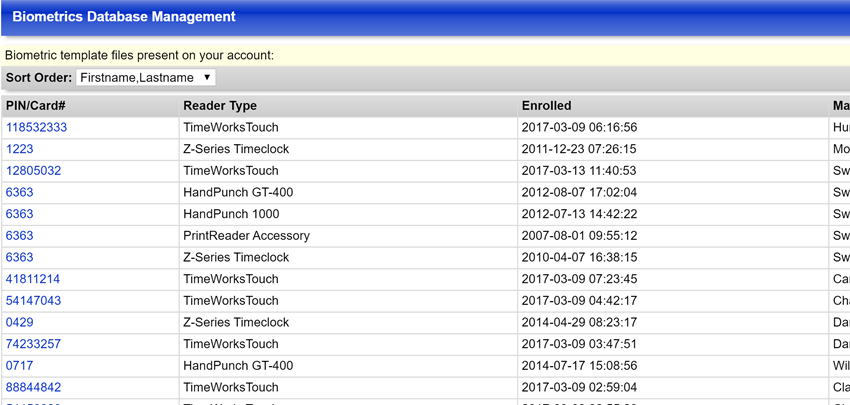
All employees in your organization will be listed and divided up by their registration status. For each registered biometric template, you'll see the PIN, Reader Type (clock type), enrollment date, and employee name. If you're using a Touch or Vision clock, which don't require a PIN, the number shown is technically the employee's database ID number.
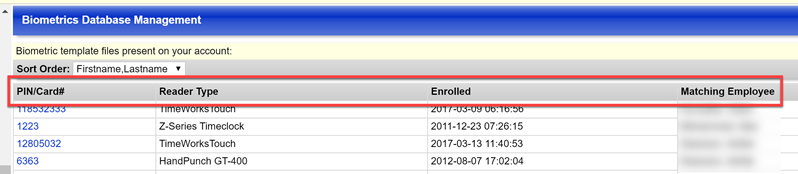
If you scroll down past the list of enrolled employees, you'll also see the following:
- The following print(s) have no matching employees - These are prints that have been enrolled at the clock, but the PIN associated with the print does not match any employees. This could be due to a) a new hire being enrolled before they are entered into Employee Setup or b) an employee enrolled with the wrong PIN number. NOTE: This section would not apply to sites using TimeWorksTouch or Touch as they require an employee record to enroll a print.
- The following employee(s) are separated - If an employee is terminated in Employee Setup, their name and PIN appears in this list. If the clock contacts the server to do a full download of print templates, it will exclude these employees from the download.
- The following employee(s) fingerprints were present in the past, but have since been deleted - These are fingerprint templates that were overwritten and deleted from the clock. See Delete Prints later in this article for more on what this means.
- The following employees do not have any fingerprints enrolled in the system - These are employees with a record in Employee Setup but have not been enrolled on a clock. This list is useful when trying to determine which employees still need to have their fingerprint or face registered.
Delete Prints
When an employee has their biometric template scanned on a biometric clock, the system stores a template, not a copy, of the print on both the clock and the timekeeping system's servers. This template is a recording of certain landmarks on the fingerprint or face that can be used to identify the employee when they clock in. These templates can be deleted from the Biometrics Maintenance page.
To delete a terminated employee's biometric template that was enrolled on Touch or Vision:
- Terminate the employee in Employee Setup by giving them a Separation Date. On or after this date, when the clock checks the server, it will remove the print from the clock.
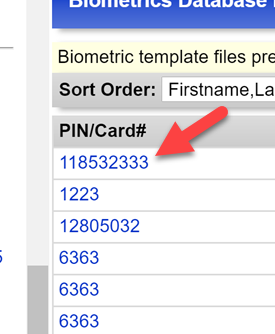
- After the separation date, in Biometrics Maintenance, click on the PIN/Card# for the fingerprint or face record you want to delete.
- Click the Delete button.
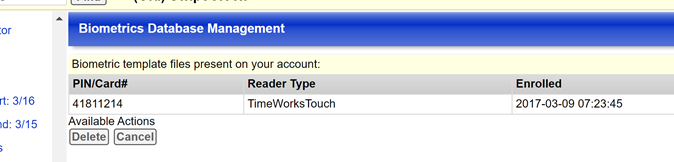
The print will be removed from both the clock and servers.
To delete a fingerprint enrolled on Punch+, a Z-Series timeclock, GT-400, or the PrintReader Accessory:
- In Biometrics Maintenance, click on the PIN/Card# for the fingerprint you want to delete.
- Choose one of the two delete options presented.
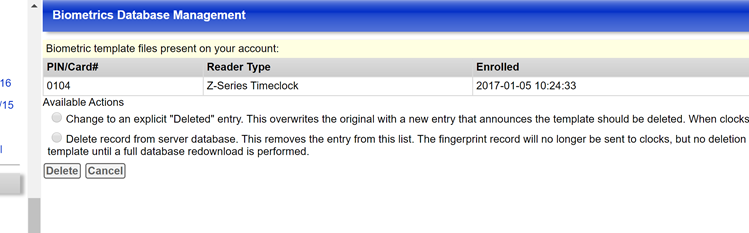
Change to an explicit "Deleted" entry overwrites the fingerprint template and moves it to the section of Biometrics Maintenance labeled The following employee(s) fingerprints were present in the past, but have since been deleted. The fingerprint template is overwritten, but a record that the employee had a registered print remains.
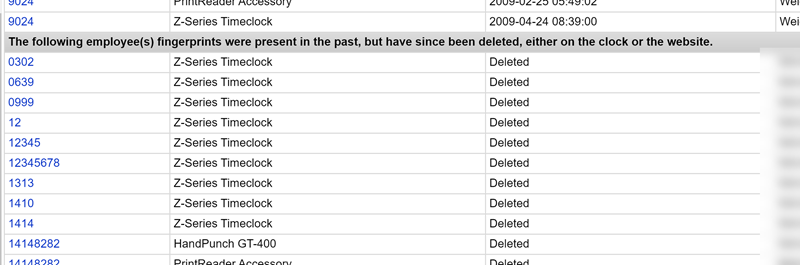
The template will also be removed from any clocks the next time they contact the servers.
Delete record from server database removes the fingerprint template and any record of the template from the servers. However, this option technically does not delete the print from the clock. Unlike the explicit "Deleted" option, no deletion message is sent to the clocks. In order to remove the fingerprint template from the clock, you will need to do a Full Erase and Download from each clock.
IMPORTANT: If you choose Delete record from server database and perform a Full Erase and Download, you will also delete any Trusted PINs and manager fingerprints stored on the clock. If you choose this deletion option, you will need to set up Trusted PINs and manager fingerprints again.
- After choosing a deletion option, click Delete.
For instructions on performing a Full Erase and Download on the clocks, see the article Print Downloading on Ethernet Clocks.