Use the Employee Portal and Mobile App
The mobile app and Employee Portal provide a point of access to many of your employer's timekeeping resources. This, at minimum, includes your time card, but may include more based on your employer's configuration.
The Employee Portal is accessed on any web browser using a web address, login and password provided by your employer.
Our mobile app can be installed on your iPhone or Android device. Please see How-to: Install TimeWorksPlus Employee for information on downloading and configuring the app.
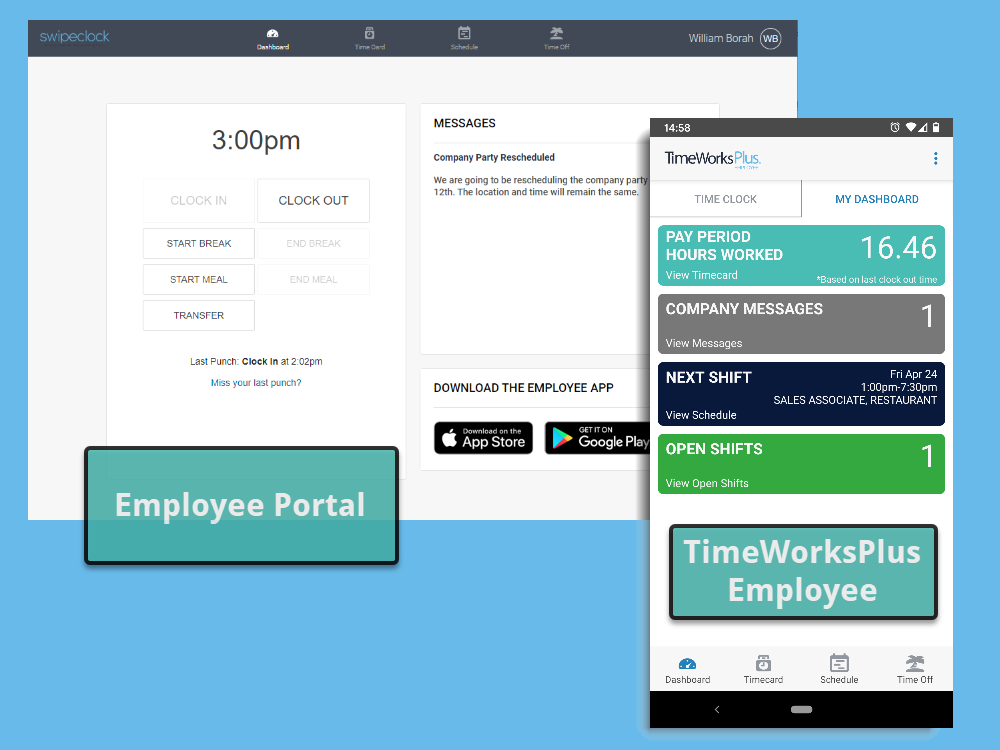
You can access your timekeeping portal through the mobile app or the desktop Employee Portal
Both systems have the following features, dependent on your employer's configuration:
- View and approve your time card. and edit your time card (if enabled).
- Request time off.
- See your schedule as well as drop and pick up shifts.
- Update your phone, email and timekeeping password.
- Clock in and out.
- View company messages
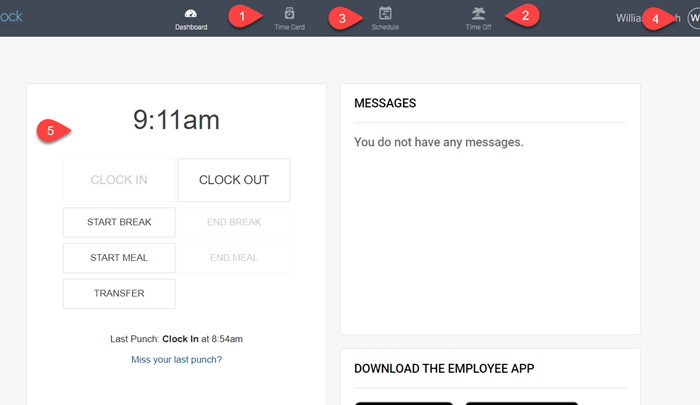
You can access the features listed above on the Employee Portal through the marked tabs.
You may also have access to view your pay stubs and other HR documents with the WorkforceHUB mobile app. Please see the article View Pay Stubs, W2s, and My Documents in TimeWorksPlus Employee if your employer offers that feature.
For videos explaining use of these features, see VIDEO: Employee Portal Training Videos.
Approve Your Time Card
Time card approvals is an optional feature where your employer asks you to verify that your punch data is accurate.
From the Time Card tab in the Employee Portal:
- Click the checkmark in the E column to approve a single day.
- Alternatively, click Approve All to approve all days in the pay period.
- Days that have been approved will be indicated with a green checkmark.
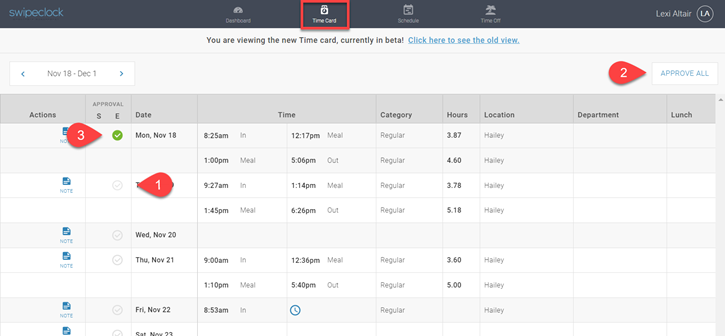
Time cards can be approved day-by-day or for an entire pay period.
Any changes or edits made to an approved entry will reset the approval status.
If you cannot approve a time card, the pay period has likely been finalized, which prevents further changes from being made. It that case, you will need to speak with your supervisor about any discrepancies on your time card.
The approval column also displays whether the day has been approved by your supervisor, which is indicated by an S in the column header.
Approve in the Mobile App
The mobile app uses a compact view of the time card, but approving is still quite simple:
- Select the Time Card tab at the bottom of the screen.
- Select the day you want to approve. This will open a detailed view of the day's entries.
- Tap the Approve button at the bottom of the screen. Approved days will show in green.
You also have the option to approve the entire pay period using the checkmark on the lower right of the time card.
Edit Your Time Card
If you have been given the ability to edit your personal time card by your employer, you can add and edit entries from the time card view in both the Employee Portal or the mobile app. Use ADD on any time card row to make a new entry or EDIT to change an existing entry (a). You have the option of entering individual IN/OUT times in the Time column or just your total hours for the day in the Hours column.
Depending on your company's configuration, you can also select the Punch Type (IN/OUT, Transfer, Meal Start/Stop, Break Start/Stop), the Category, and any clock prompts used for collecting information like department, location, or tip. Click SAVE once you are finished making your entry (b).
Edit in the Mobile App
The mobile app uses a compact view of the time card, but editing is still quite simple. To make a new entry, select the day and tap + ADD ENTRY at the bottom of the screen. To edit an existing entry, select the entry and tap EDIT below the entry details.
Request Time Off
Time Off Requests is another optional feature that your employer may offer in the Employee Portal and mobile app. When you request time off, you can check your balance and see a calendar with your upcoming shifts, as well as your approved time off. Also, the system notifies your manager, via email, that you've asked for time off. And you can receive an email yourself once a decision has been made on your request.
- Select the Time Off tab.
- Select Request Time Off.
- Enter the dates, category, and hours per day of your request.
- (optional) If you are making a multi-day request and need to edit the amount of hours on individual days, or you need to enter the actual time of day you want off, select Edit hours manually.
- Include a comment if you with, then click Request Time Off.
For more detailed instructions on:
- The Time Off Calendar.
- Checking your available time off balance.
- Including weekends in your request.
- Conditionally approved requests.
- Getting an email when your request is approved.
See the article Request Time Off.
Check Your Schedule
The scheduling feature (if used by your employer), displays shift details in 3-week increments.
On the calendar, dates when you are scheduled are indicated with blue circles.
You can select a single shift from the My Schedule tab to view additional details. NOTE: This feature depends on the type of scheduling used by your employer.
Time off will also appear on both the My Schedule tab and the calendar. Approved time off will show on the calendar with the date circled.
Dates with time off pending approval will be circled in grey.
Drop and Pick Up Shifts
The ability to drop and pick up shifts can also be done through the Employee Portal and mobile app.
If you would like to drop your scheduled shift by offering it to any eligible employees:
- Select the "three-dot" menu to the right of the shift in the My Schedule tab.
- Select Drop Shift.
- Confirm you want to drop the shift. You will be reminded that you are still responsible for the shift until a manager approves a pickup.
- Click Drop Shift to acknowledge and complete the process.
The shift will remain on your schedule but show as Pending Drop. It will also be indicated with a green circle on the calendar. Once a manager approves a pickup, it will be removed from your schedule.
If you want to pick up a shift:
- Select the Open Shifts tab from the Schedule tab.
- Select the "three-dot" menu to the right of the shift.
- Select Pickup Shift.
Make sure you Set Your Schedule Notifications to get a text when a shift is available or, your shift change request has been approved by a manager.
TimeSimplicity Employee Portal
If you are being scheduled with TimeSimplicity, there are additional features, like schedule preferences and notification settings, that you can configure by clicking Go to TimeSimplicity.
Update Your Personal Information
Your employee information is found in the right corner of the screen by clicking your initials (or the "three-dot" menu in the mobile app) and selecting Profile.
The following items are available in your Profile:
- View/edit your phone and email.
- Reset your password by selecting Password.
- Enable email notifications when time off is approved.
- If you are a supervisor, connect your employee login to your supervisor login.
- View your start date, Home Position, Department and Location.
- View your supervisor's contact information.
- If you make any changes to your profile, make sure you click Update Info.
Clock In/Out
For instructions on using the clock in the employee portal or mobile app, please see Employee Login - WebClock and ESS or VIDEO: Employee Portal Training Videos.