Trusted PINs on Touch, Touch 2, and Vision Clocks
Enable Trusted PINs on the Clock - Company Administrator Instructions
Select employees can bypass biometric identification on Touch, Touch 2, and Vision clocks with a Trusted PIN. This option could be used in instances where an employee fingerprint cannot be enrolled on a Touch clock due to worn and unreadable fingerprints or an employee needs to use Swipeclock Vision without having their face record recorded. With a Trusted PIN, then can select the Enter Trusted PIN button on the clock screen and enter their PIN on the clock. This article explains how a Trusted PIN works and instructs providers on how to set it up for their clients in timekeeping..
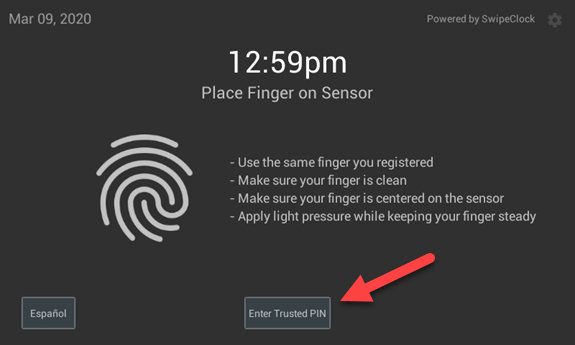
Trusted PIN button on the Touch clock entry screen
To enable Trusted PIN:
- On TimeWorksTouch, Swipeclock Touch, and Swipeclock Touch 2, go the the CLOCK SETTINGS tab and enable Enforce Biometric Scan w/ PIN Backup as the Sign In method.
- On Swipeclock Vision go to the CLOCK SETTINGS tab and enable Show PIN button.
Check the article Touch Clock Biometrics if you are unsure of how to access the CLOCK SETTINGS tab and change the Sign In Methods. The instructions in that article also apply to the Vision clocks.
After enabling PIN backup on the clock, you need to enable the Trusted PIN field in the company's Processing Rules. This can only be done by providers using an accountant-level login.
Enable Trusted PIN in TimeWorksPlus - Provider Instructions
To enable Trusted PIN in TimeWorksPlus:
- Select the company from the Accountant Menu.
- Expand the Settings Menu
- Select Processing Rules.
- Choose the Additional user fields category.
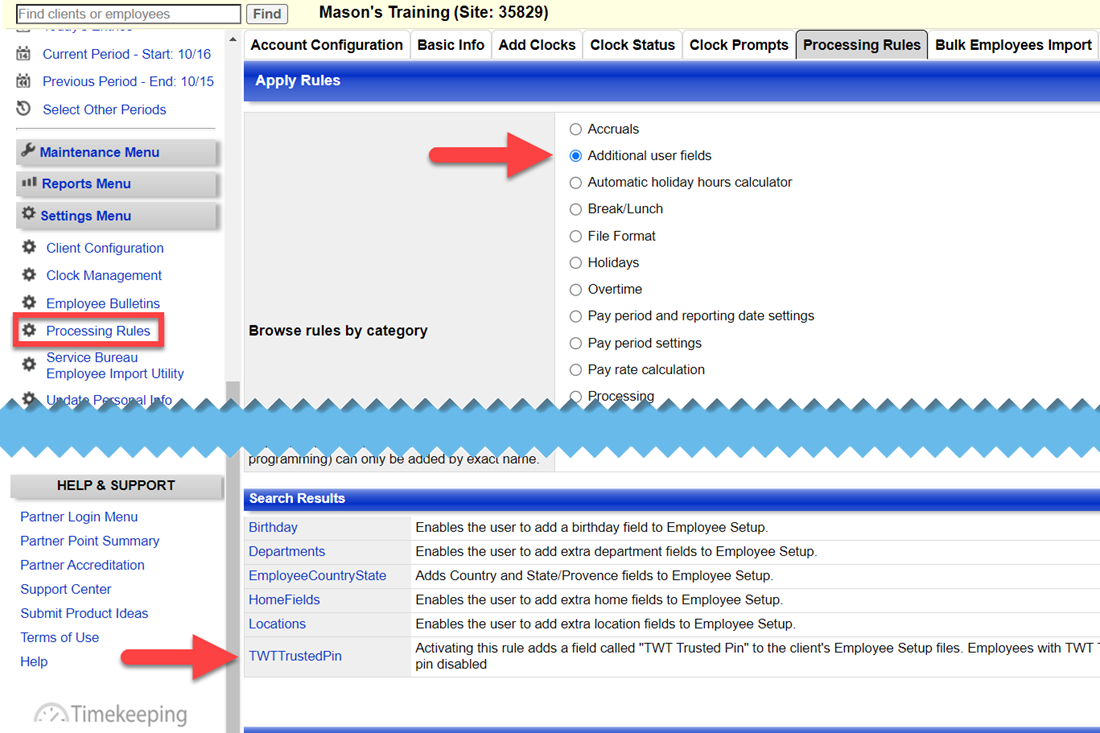
Additional User Fields in Processing Rules
- From the list of search results, choose TwtTrustedPin.
- On the resulting page, click Save to activate the field.
The TwtTrustedPin field is now available on the employee record.
Add a Trusted PIN in TimeWorksPlus - Company Administrator Instructions
Client-level users and any user with Employee Setup access can enable and add a Trusted PIN for an employee. Within the Employee Data section of their record is a TwtTrustedPin field.
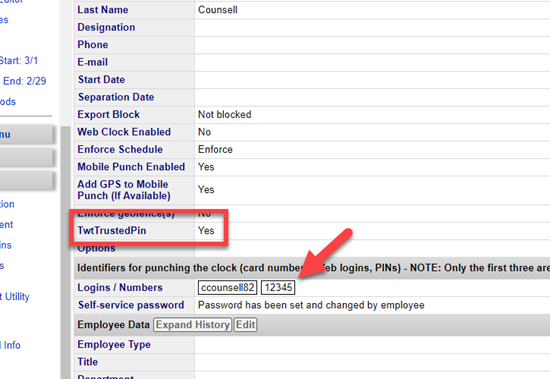
Trusted PIN option in Employee Setup
Any employee with that field set to "YES" is able to use the PIN that’s entered in their Logins / Numbers field of Employee Setup. If an employee that does not have a Trusted PIN attempts to clock in using the PIN button, their punch is not recognized.
IMPORTANT: The PIN must be entered in one of the first three fields in the Logins section.