Check Your Time Off Balance
The Employee Portal displays your time off balance (PTO, Vacation, Sick, etc.) on both the Time Off and Time Card tabs. This article explains how to view your balances, clarifies how the displayed values are determined (and why they might differ based on where you view them), and shows how you run the Balance Report so you can see your future available balance.
IMPORTANT: Your employer may not be tracking time off balances in the timekeeping system. If you do not see the balance tiles on the Time Off tab, (as shown below), check with your manager for the appropriate place to check your balance.
Balance Tiles
The Time Off tab in the Employee Portal and mobile app shows your balances at the top of the page. These numbers represent your balance on the current day; they do not account for any future additions or deductions to your balance.
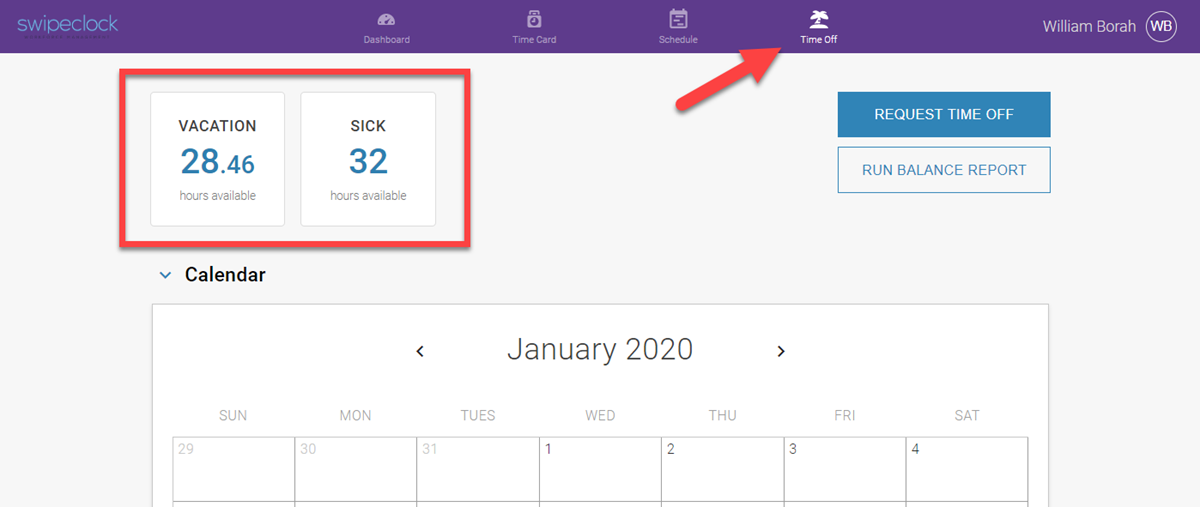
Your available balance, as of the current date, will be displayed in tiles on the Time Off tab
If you click a balance tile, you will be able to make a request using that category of time off.
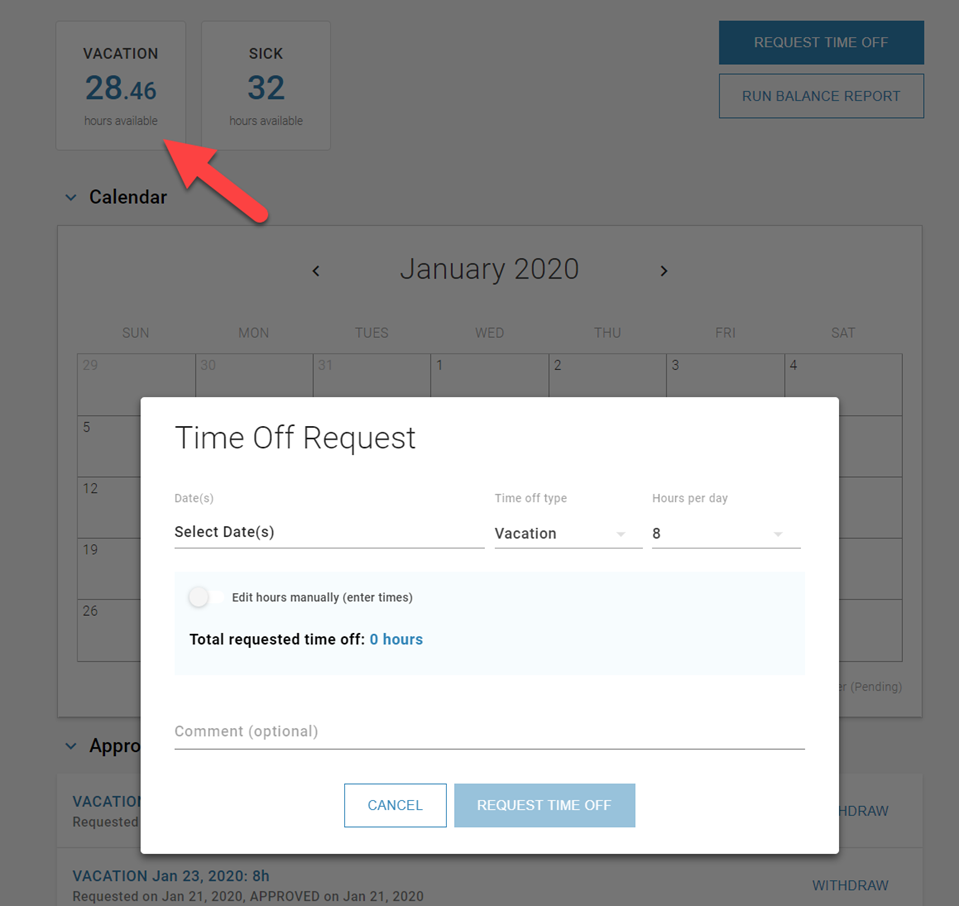
Clicking the balance tile allows you to make a request with that category of time off
See Request Time Off for more information on how to make a request.
Balance Report
The Time Off tab in both the Employee Portal and mobile app contains a button labeled Run Balance Report. This report shows additions and subtractions to your balance over a date range.

Before making a time off request, running this report will show you your available balance for the dates you are requesting as opposed to the current balance.
- Click Run Balance Report from the Time Off tab.
- Click in the Select Date(s) field and select the current date followed by a date on or after the last day of your time off request.

- Click Done.
- Click Run Report. The details of any additions (accrued time) and deductions (approved time off or expiring balances) will be shown along with a running balance.
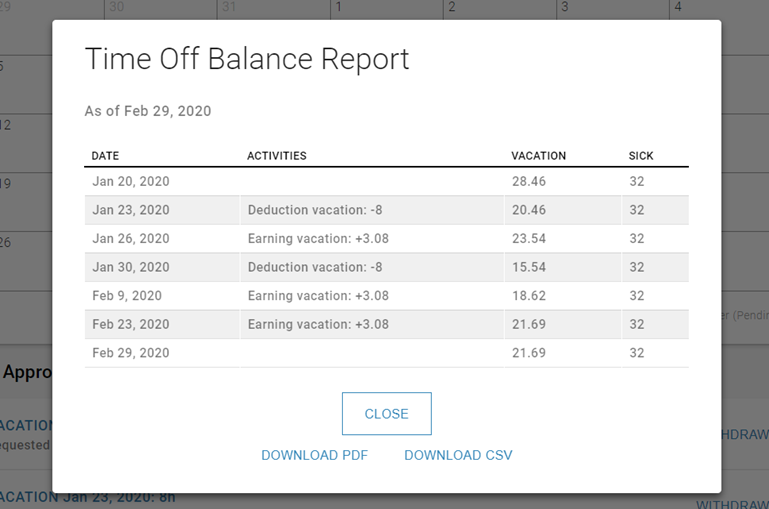
- optional: You can export the report as a CSV or PDF for your records.
- Click Close when finished to exit the report.
This report can be run for approximately a year into the future. It can also be run for past dates but is limited to approximately 3 months of historical data.
Time Off Balances on the Time Card
Your available time off balances (also referred to as Accrual Balances) are displayed below your time card in the Employee Portal. However, these totals will not be shown on the mobile app's compact version of the time card. You will need to go to the mobile app's Time Off tab to view your balance.
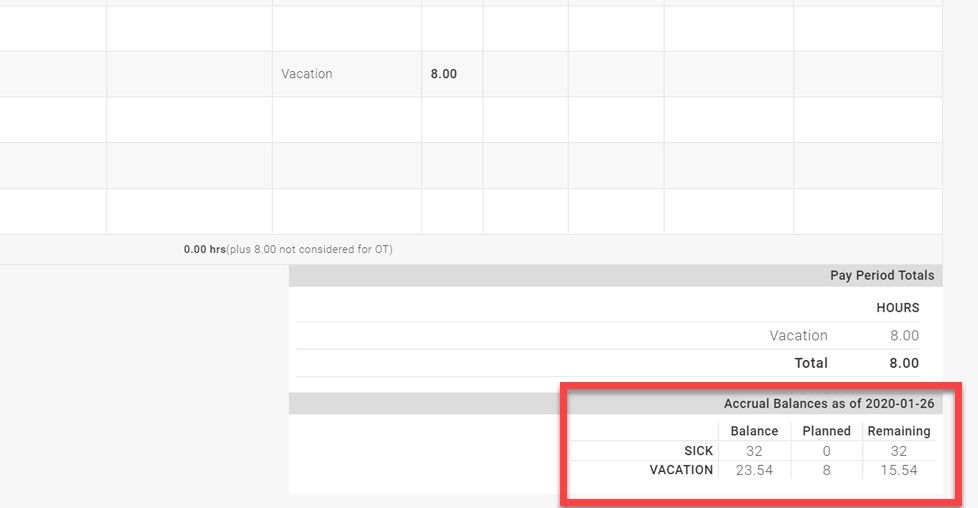
The Balance column shows your balance as of the last day of the pay period, not the current date. For this reason, the balance you see here may differ from what you see on the Time Off Balance tiles in the Time Off tab.
The Planned column reflects any future time off requests beyond the selected pay period. This value reflects only approved requests, not pending.
The Remaining column displays your adjusted balance by subtracting Planned time off from the balance on the last day of the pay period.